Session Tools
Complete guide to Opulent's Workbench, Browser, and terminal tools
Opulent gives you several tools during a session so you can monitor, interact with, and take over the work: the terminal, the Workbench, the Browser/Desktop, and the artifact panels. These tools work together to give you full visibility and control over Opulent's environment. The Progress view brings them together in one place, giving you clear visibility into the thread's ongoing work.
Session Tools are grounded in the sandbox runtime (Repo evidence): every session runs against a real terminal, editor, browser, and file store, and their output is streamed back to you. Panel names and layout may vary as the session UI evolves — the capabilities described here are stable even where the exact chrome differs.
Progress
You can click on any of the steps within a session, or open the Progress view, to see the details of that step. All terminal commands, file edits, and browser activity are logged in one unified thread-progress timeline.
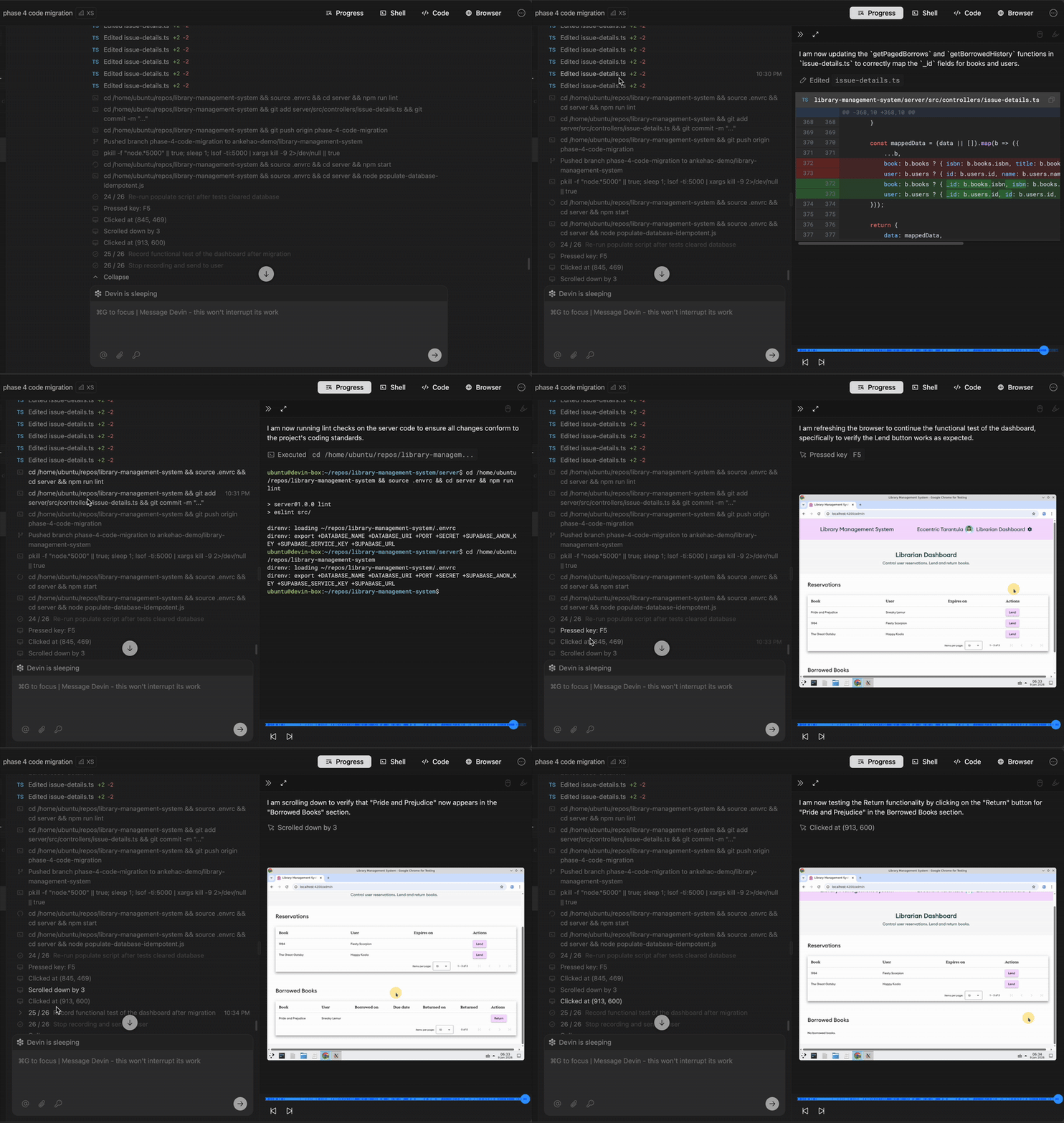
Terminal & Sandbox Output
Opulent's terminal provides full command-line access to the sandbox environment. You can monitor the commands Opulent runs, view their output, and run your own commands when needed.
Command history features
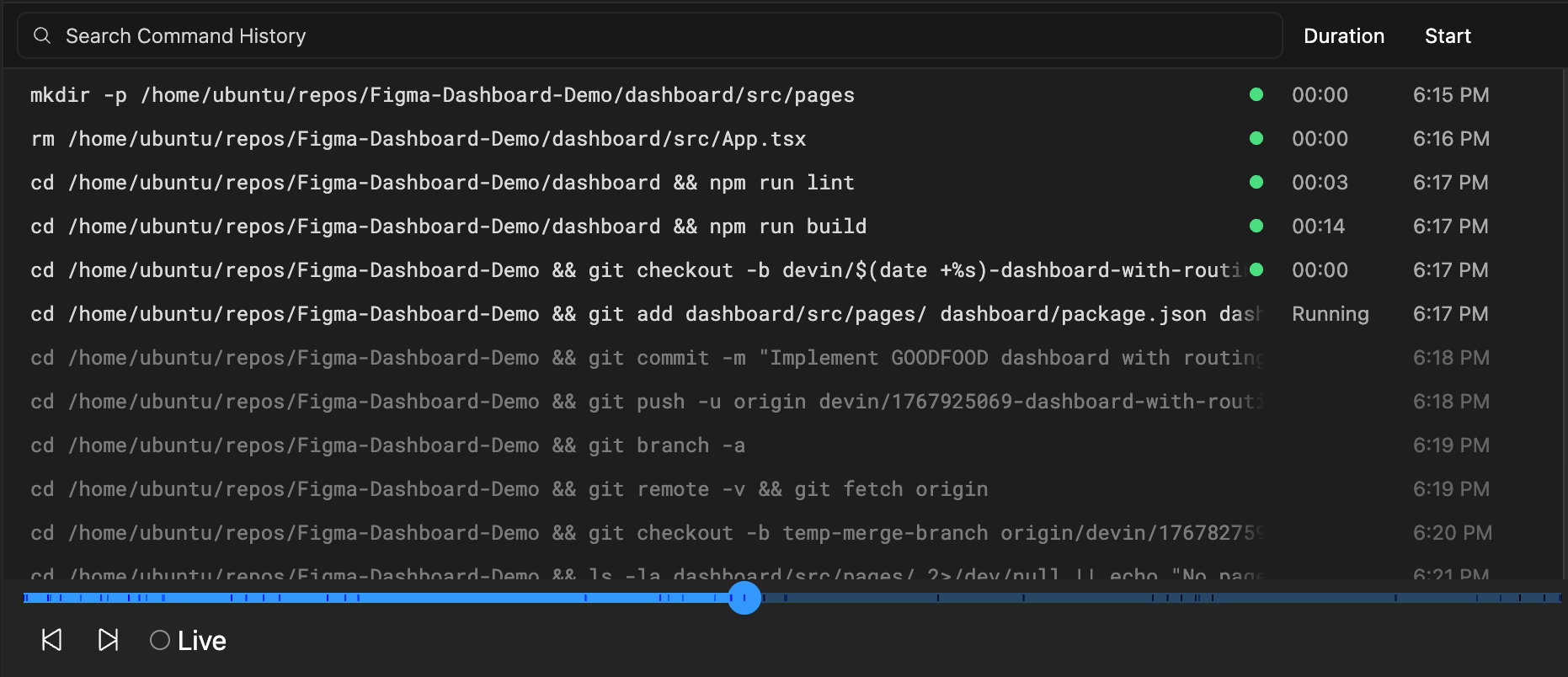
With command history, you can easily see a list of all the commands Opulent ran, along with a preview of their output. Key features include:
- Full command list: View every command Opulent has executed during the session
- Output preview: See the output of each command without switching contexts
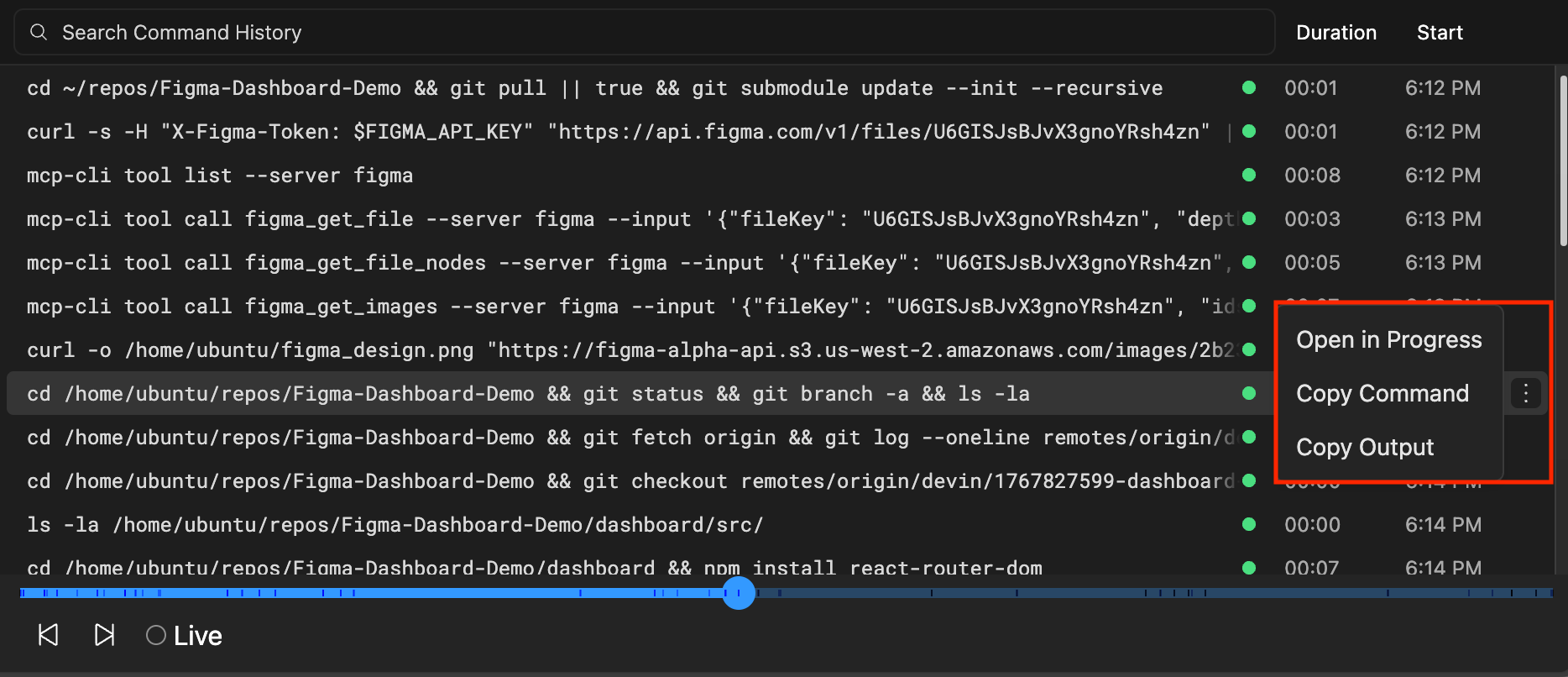
- Copy functionality: Quickly copy commands and output to your clipboard
- Time navigation: Jump to different points in the session by clicking on commands
- Integration with progress updates: Terminal commands are linked to Opulent's progress updates for context
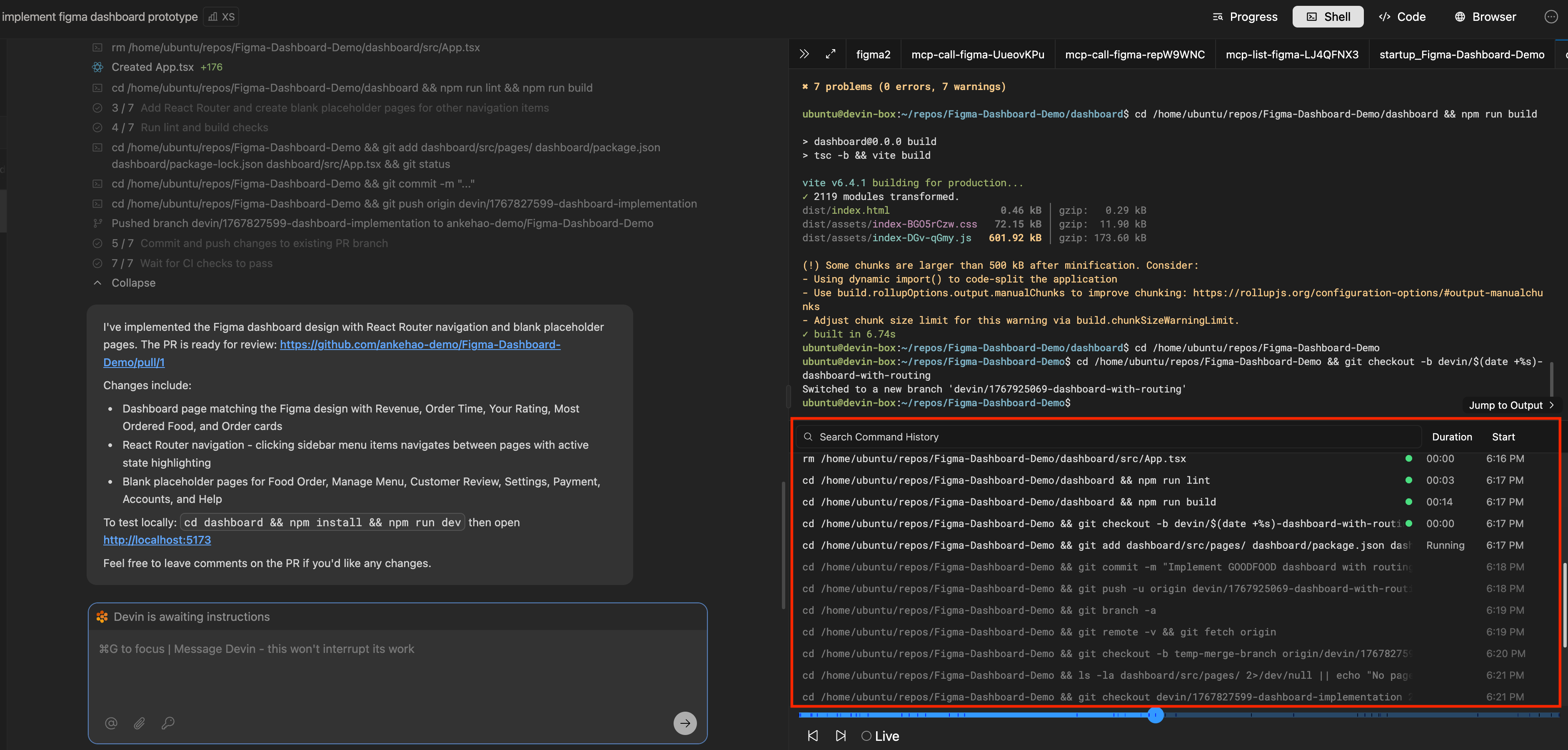
View terminal updates
During a session, you can click into Opulent's progress updates to view the specific terminal commands used while working through sub-tasks. The progress view shows terminal output in context with the work being performed.
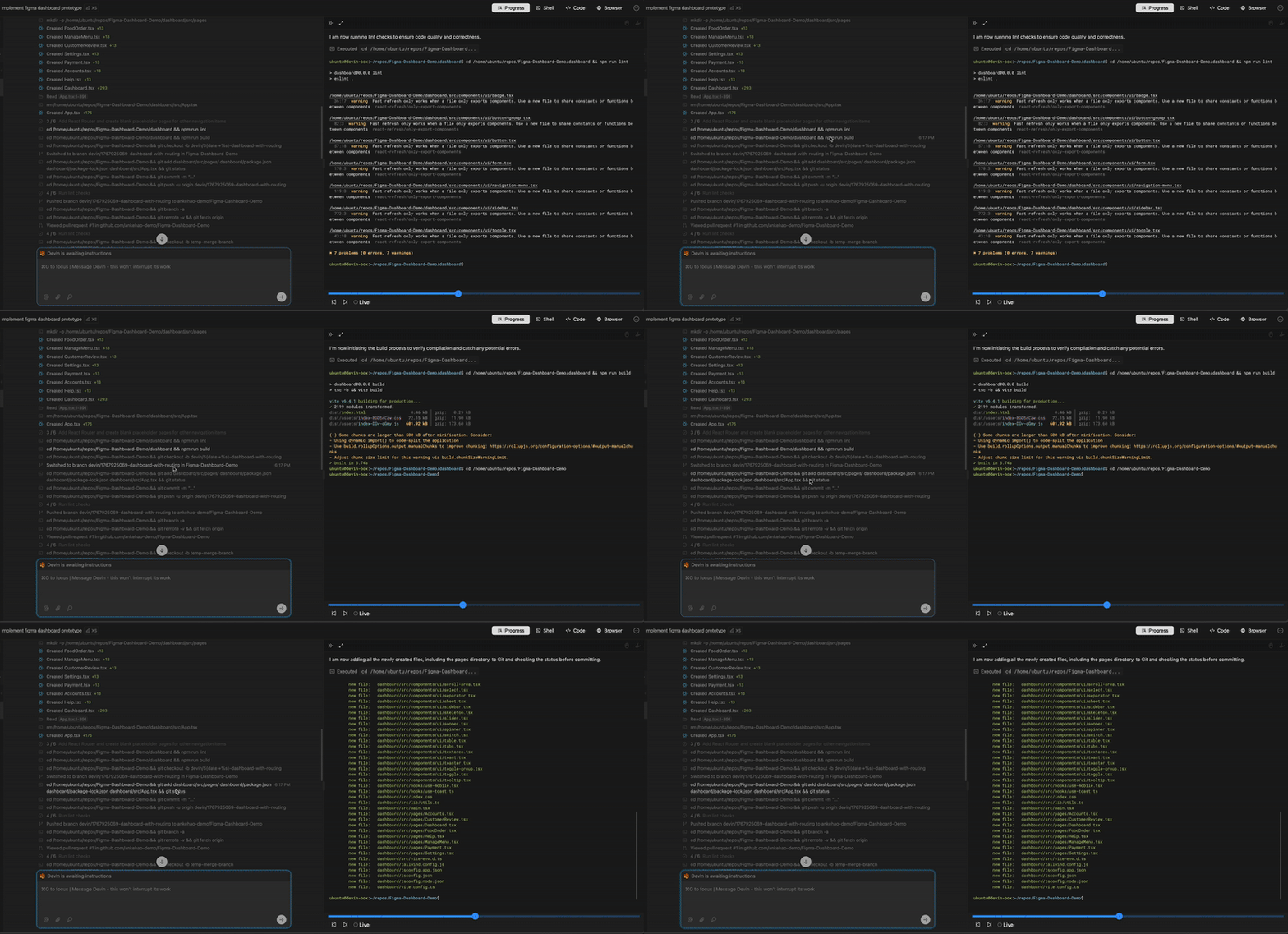
Terminal command history
Terminal updates show you the full command history and related output. You can easily copy a command and its output by clicking on the three-dots icon.
Commands that are greyed out are commands run at a future point in time in the session. You can jump to different points in time in the session by clicking on different commands in the Command History section.
Running your own commands
When you take over Opulent's machine, you have full terminal access. You can:
- Open a terminal in the Workbench to run commands directly
- Toggle terminals from read-only to writable mode
- Run any commands you need to debug, test, or configure the environment
Workbench
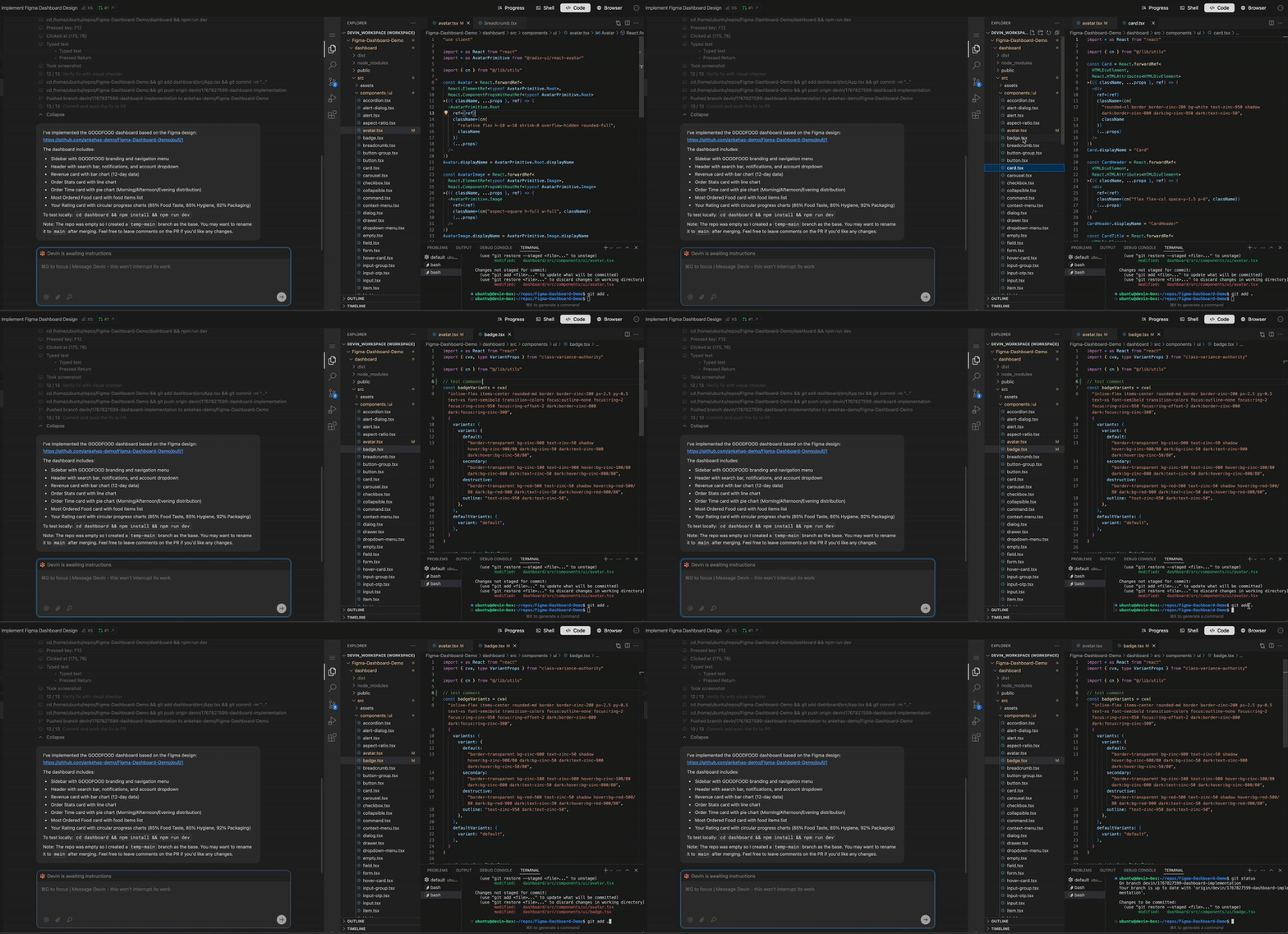
Opulent works in an interactive editor environment — the Workbench — loaded with your repos and files. You can check in on Opulent's edits in real time, then touch up the changes or test the code directly using the editor tools and shortcuts you're familiar with.
Reviewing Opulent's work in real time
You can watch Opulent make edits in real time. You're in a fully featured editor complete with familiar shortcuts, so you can open files in new tabs, jump to definition, and more. Workbench Documents and the scratchpad give the run local continuity as it works.
Taking over the task
The Workbench lets you take over Opulent's work when necessary, and test and fix changes end-to-end without leaving the Opulent web app. Stop the session to take over and start editing yourself. Familiar editor commands are available, including:
- Tab autocomplete for code completion
- Go to definition and symbol search to navigate the codebase
- Integrated terminals for running commands alongside your edits
All of Opulent's terminals, commands, and their output are available in the Workbench. Toggle from read-only to writable to run your own commands.
Workbench best practices
When taking over Opulent's work, keep these tips in mind:
- Let Opulent know about the changes you've made when you resume the session
- Make sure that Opulent is paused before taking over the Workbench to avoid simultaneous, conflicting changes
- Use Opulent's browser to test the local build yourself, without leaving the web app
Interactive Browser & Desktop
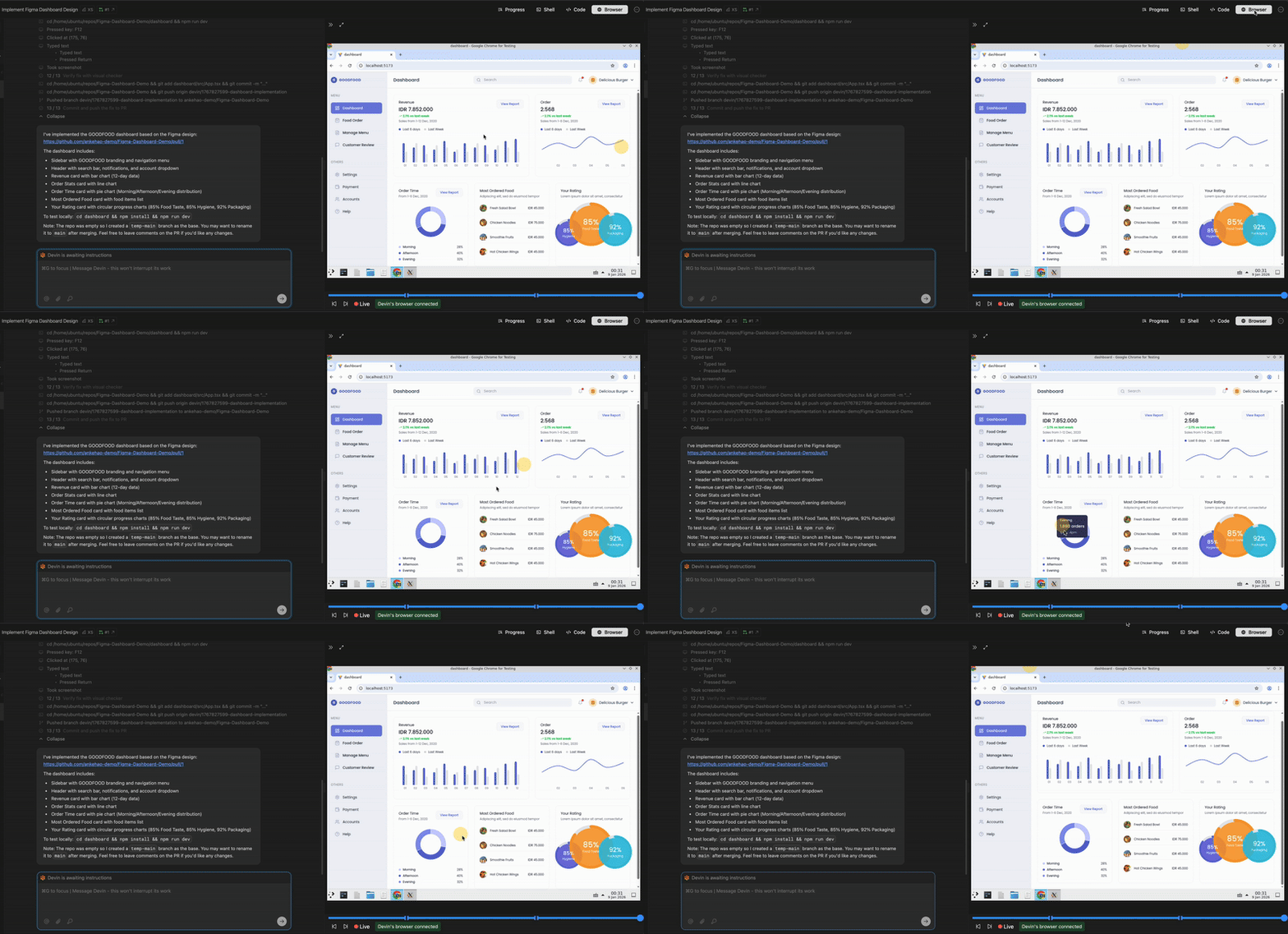
The Interactive Browser is located under the Desktop tab in the session UI. It lets you directly view and interact with Opulent's browser and desktop environment. This is especially helpful for browser tasks where Opulent may need assistance, such as completing CAPTCHAs, completing multi-factor authentication steps, navigating complex websites, and more.
Browser use cases
The Interactive Browser is particularly useful for:
- Testing local applications: Test your application running on Opulent's machine directly in the browser
- Visual verification: Verify that UI changes look correct in the browser
- Screenshots and recordings: Opulent can capture screenshots and videos of the browser and submit them back to you as proof of testing or to show results
- Authentication flows: Complete login steps, MFA challenges, or OAuth flows that Opulent cannot handle automatically
- CAPTCHA solving: Manually solve CAPTCHAs when Opulent encounters them
- Complex navigation: Help Opulent navigate through complex web interfaces or multi-step forms
Cookie persistence
When you interact with the browser during a session, cookies and session data persist throughout the session. This means you can log into services once and Opulent will maintain that authenticated state for the remainder of the session.
Artifact Panels & Tool History
Alongside the terminal, Workbench, and Browser, each session surfaces two more views:
- Artifact panels collect the durable outputs of a run — generated files, diffs, screenshots, and QA recordings — so you can open, review, and download what Opulent produced without digging through the timeline.
- Tool history lists the tool calls Opulent made, in order, with their inputs and results. It's the fastest way to understand what Opulent did and to jump back to the moment a specific action ran.
Integration & Workflow
The Workbench, Browser, and terminal tools work together seamlessly to provide a complete working experience.
Opulent can perform diverse batches of actions concurrently, such as viewing the browser while running a terminal command while reading multiple code files. This parallel execution improves speed and efficiency.
Typical workflow
A typical workflow using these tools might look like:
- Start a session and let Opulent begin working
- Monitor progress using the thread's progress updates
- Check terminal commands to understand what Opulent is executing
- Review quick code changes in the Workbench using the diff view
- Functional testing of prototypes (for frontend work)
- Take over if needed by stopping Opulent and using the Workbench directly
- Resume Opulent after making your changes and informing it what you did
Best Practices
When to use each tool
| Tool | Best for |
|---|---|
| Workbench | Reviewing code changes, making quick edits, debugging |
| Desktop (Interactive Browser) | Frontend prototyping, visual testing, authentication |
| Terminal | Monitoring commands, running tests, debugging issues |
Tips for effective collaboration
- Intervene early: If you see Opulent going in the wrong direction, stop and redirect early
- Leverage command history: Use terminal command history to understand what Opulent has tried and what worked
- Communicate changes: If resuming the session, always tell Opulent about any changes you made when taking over