GitHub
Work with Opulent directly in your repos
Why integrate Opulent with GitHub?
Integrating Opulent with your GitHub organization enables Opulent to create pull requests, respond to PR comments, and collaborate directly within your repositories. This lets an Autonomous Knowledge Worker act as a full contributor on your engineering team. Repository work is one lane among many, alongside diligence, research, finance, and operations sessions.
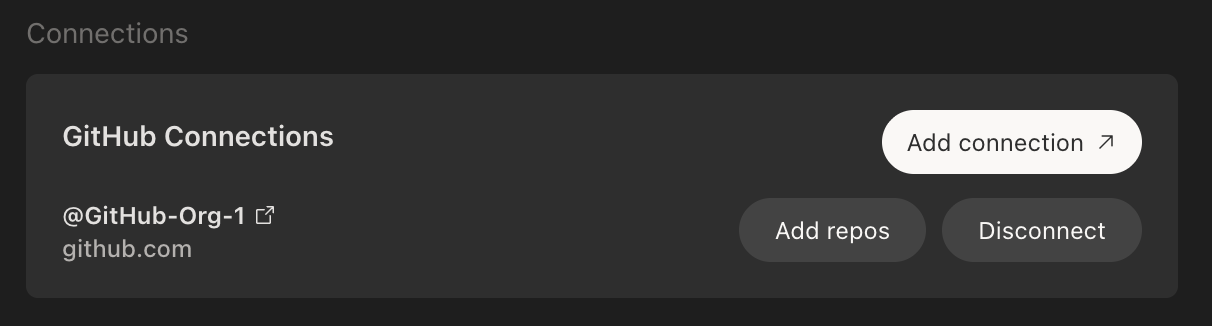
To get started, navigate to platform.opulentia.ai > Settings > Integrations > GitHub, click Add Connection, and follow the prompts. You will select which repositories Opulent can access and review the required permissions.
Using GitHub Enterprise Server or GitHub Enterprise Cloud with Data Residency? See the GitHub Enterprise Server Integration guide for setup instructions.
Setting up the Integration
You must be an admin of your GitHub organization to create and manage the Opulent integration. Having trouble? Check out our Common Issues.
- In your Opulent account at platform.opulentia.ai, navigate to Settings > Integrations > GitHub and click Add Connection.
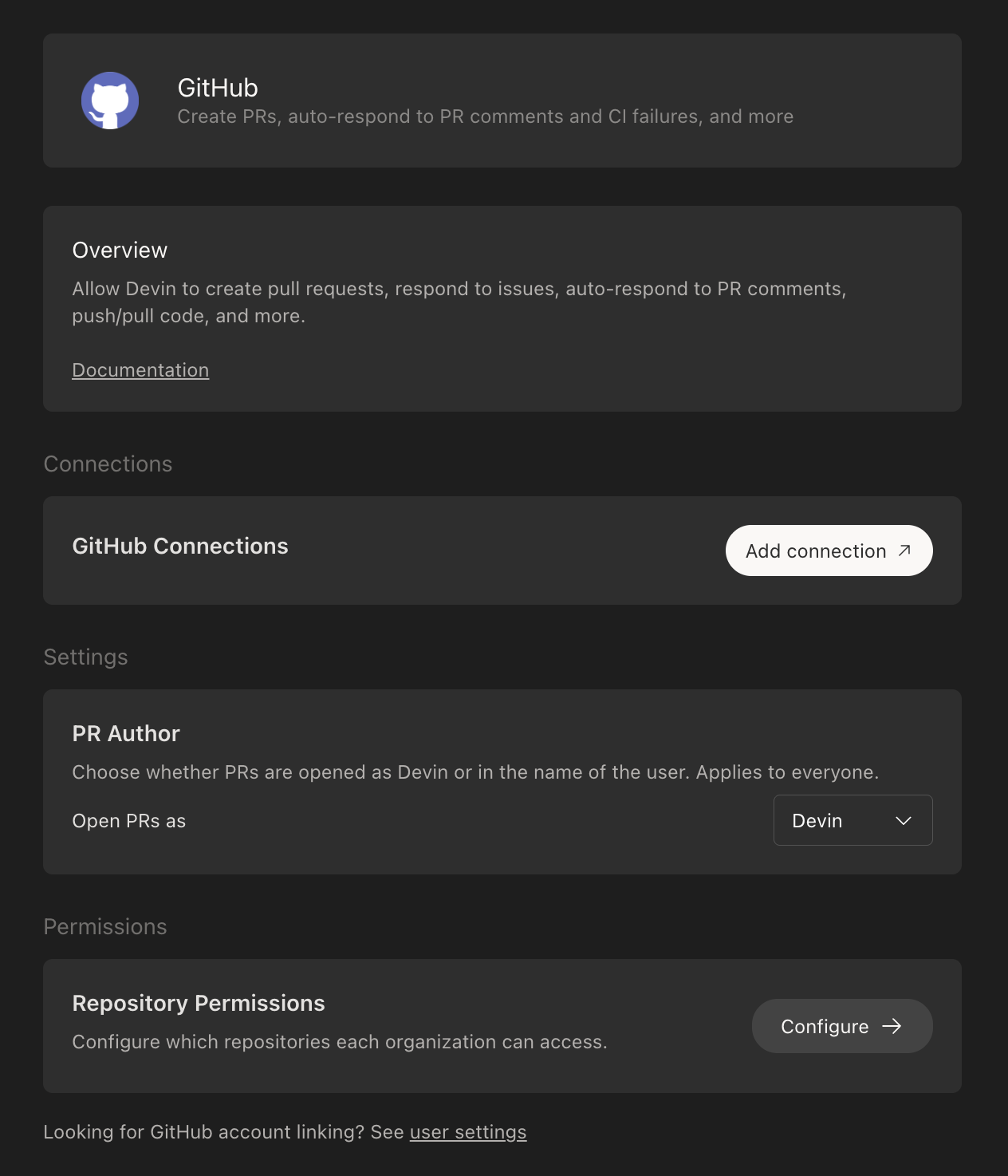
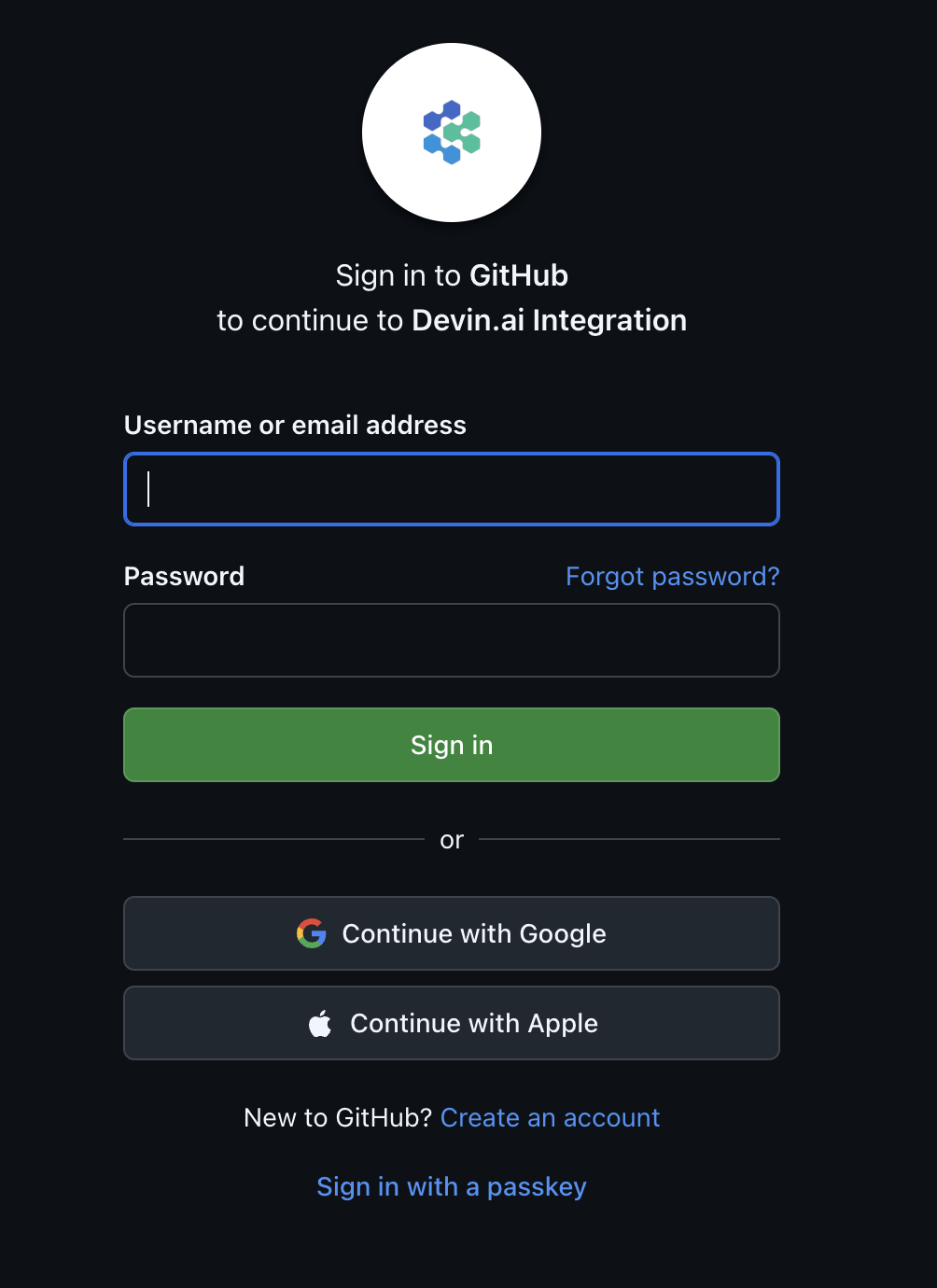
- If you are not already logged in to GitHub, you will be prompted to authenticate.
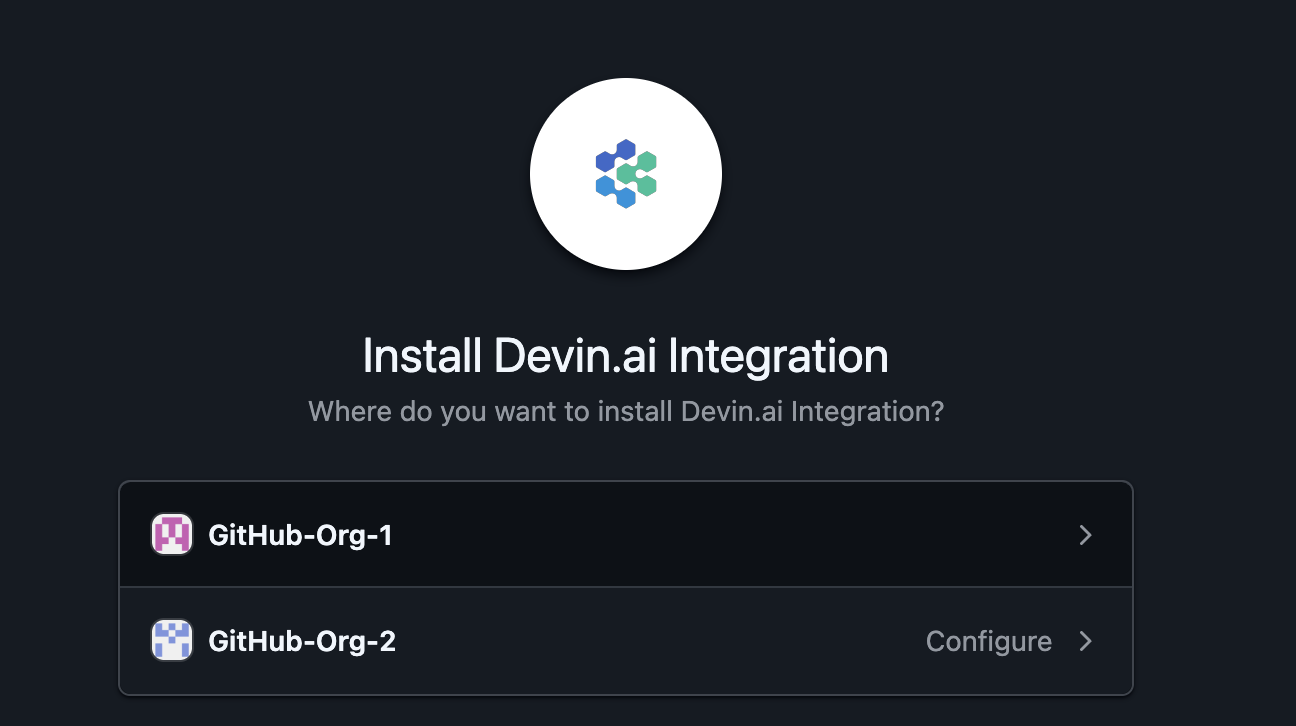
- Select the GitHub organization you want to connect to Opulent.
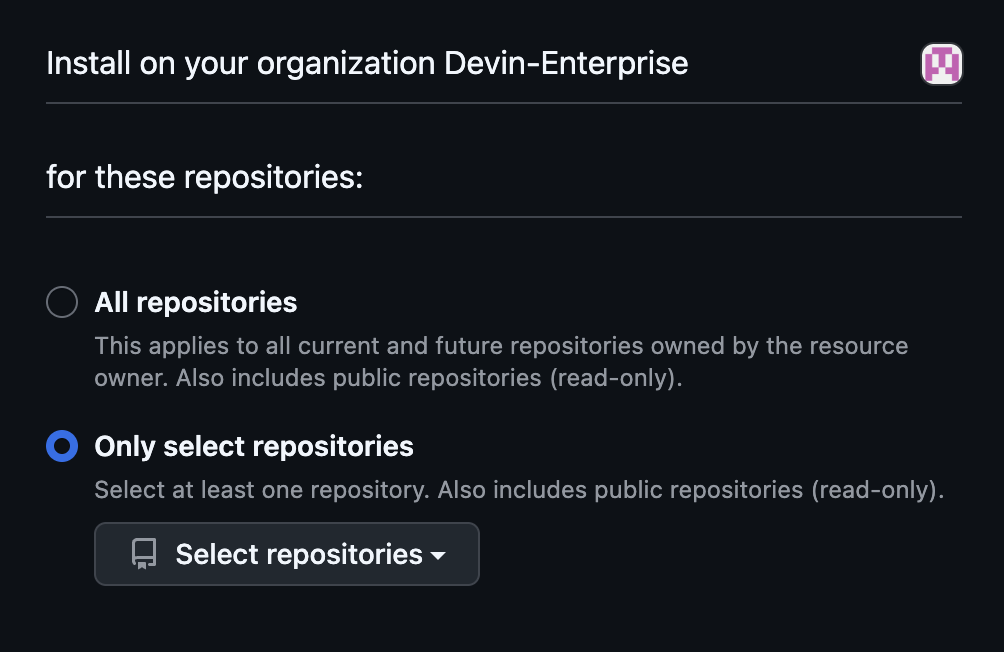
- Choose whether to grant Opulent access to All repositories or Select repositories to control which repositories Opulent can access.
- After completing the GitHub authorization, you will be redirected to Opulent settings where you can confirm the integration is active.
We recommend enabling branch protection rules on your main branch to ensure all required checks pass before Opulent can merge changes.
Using Opulent with the GitHub Integration
For Core and Teams users
Once the integration is configured, you can @mention repositories directly in your prompts within the Opulent web application.
For Enterprise users
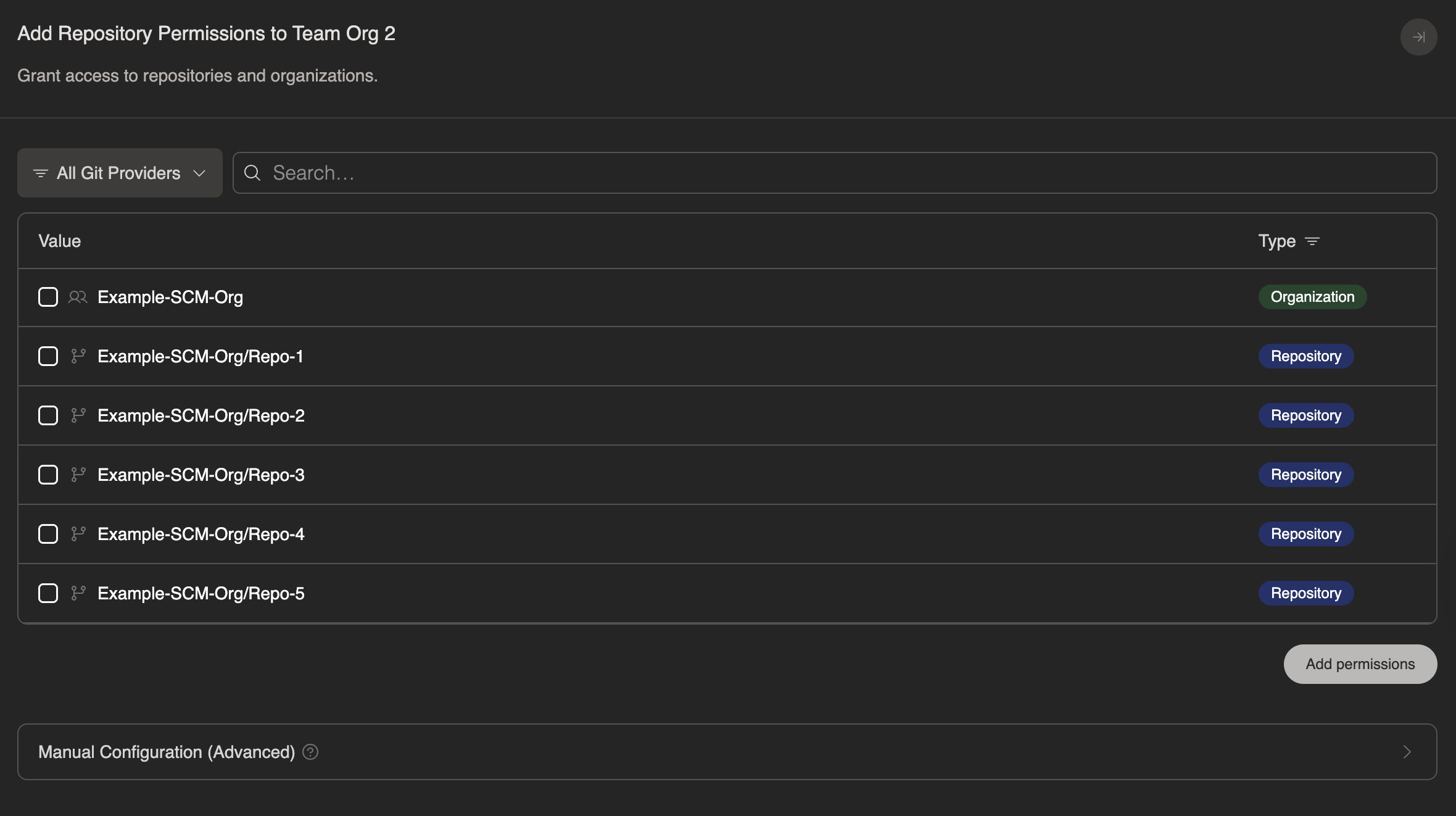
Once the integration is configured, you can delegate repositories to specific organizations from Enterprise Settings > Repository Permissions.
If you are working with a repository for the first time, we recommend completing the development environment setup in the onboarding flow to ensure Opulent has accurate, up-to-date information about your codebase. Opulent automatically responds to PR comments as long as the session has not been archived.
Managing Opulent's Permissions in GitHub
During setup, you can grant Opulent access to all repositories in your organization or limit access to specific repositories.
You can adjust repository access at any time through GitHub's settings:
- Navigate to your GitHub organization's Settings > GitHub Apps (e.g.,
https://github.com/organizations/<org_name>/settings/installations) - Select Configure for the Opulent integration
- Under Repository access, choose to grant access to all repositories or select specific repositories
- Click Save to apply your changes
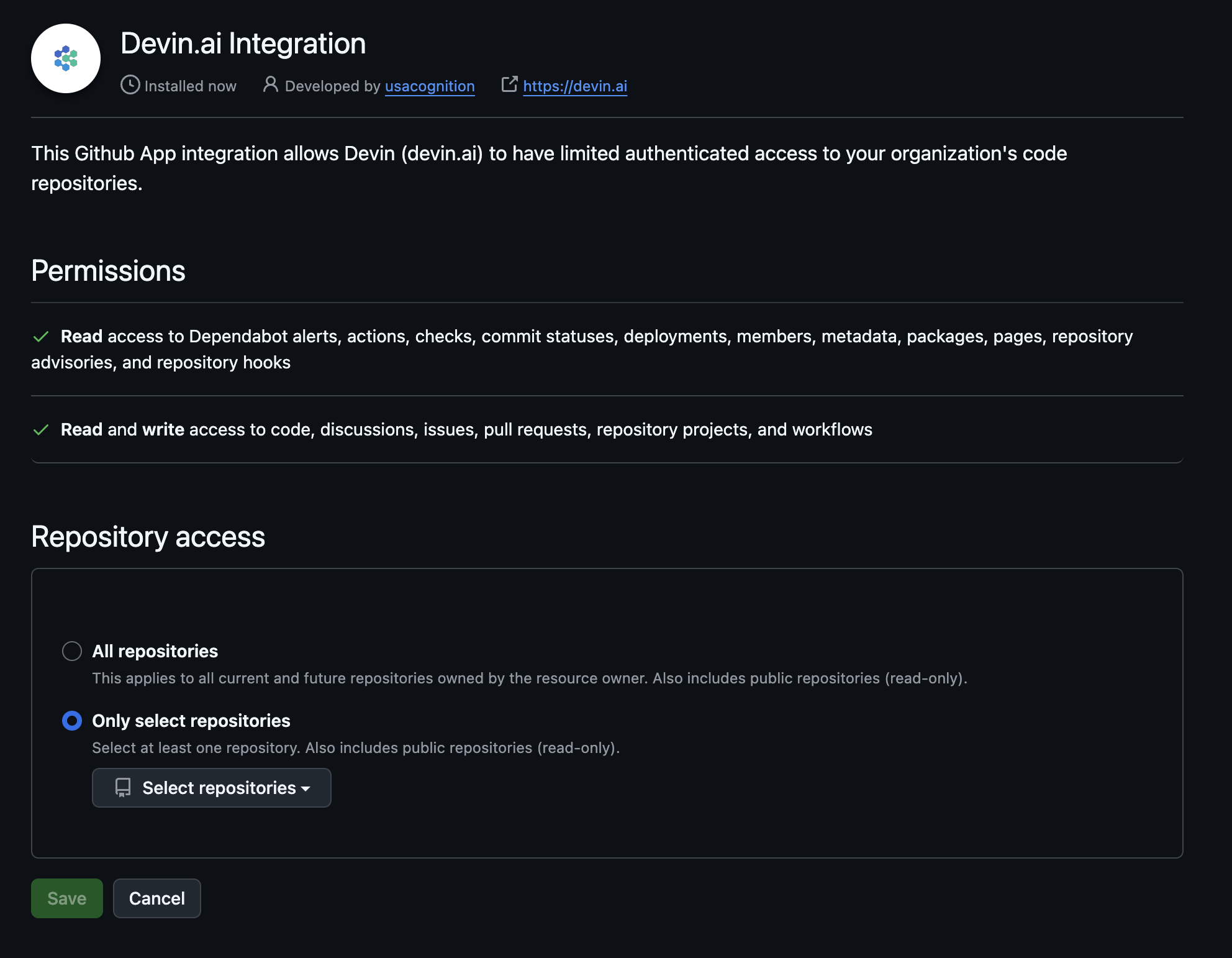
Opulent requires the following permissions:
Read access to:
| Permission | Description |
|---|---|
dependabot alerts |
Allow Opulent to resolve dependabot alerts on your behalf (i.e. bumping dependency versions) |
actions |
Allow Opulent to view the actions configured for a repository in order to understand if its changes pass CI |
deployments |
Allow Opulent to view which versions of a repository were deployed |
metadata |
Allow Opulent to view crucial metadata about a repository such as who owns it |
packages |
Allow Opulent to view which versions of a repository were shipped as a package |
pages |
Allow Opulent to consult pages associated with a repository, e.g. to view documentation |
repository security advisories |
Allow Opulent to view security advisories related to a repo in order to help fix security issues |
members |
Allow Opulent to view members of an organization |
webhooks |
Allow Opulent to view the hooks configured for a repository, e.g. linting and type checking |
Read and write access to:
| Permission | Description |
|---|---|
checks |
Allow Opulent to view and report check results for a repository in order to understand and communicate if its changes pass CI |
commit statuses |
Allow Opulent to view and set commit statuses to indicate if a commit passes CI |
contents |
Allow Opulent to contribute to the codebase |
discussions |
Allow Opulent to contribute to discussions |
issues |
Allow Opulent to open new issues |
pull requests |
Allow Opulent to create new PRs |
projects |
Allow Opulent to view and manage projects associated with a repository, e.g. to retrieve information about a task |
workflows |
Allow Opulent to set up new workflows, e.g. to help configure CI/CD |
These permissions enable Opulent to work in your repositories as a regular contributor, pushing branches, opening pull requests, and participating in PR discussions.
Pull Request Templates
When Opulent creates a pull request, it uses a template from your repository to structure the PR description. If you provide a template, Opulent follows its format when submitting PRs to GitHub.
Opulent-specific template (recommended)
You can provide Opulent with its own template without modifying your default human-facing template by adding a file named opulent_pr_template.md in one of the supported PULL_REQUEST_TEMPLATE locations below. This is useful if you want Opulent to include additional context, such as a reviewer checklist or a Mermaid diagram of modified files.
Template search order
Opulent searches for templates in the following order and uses the first match:
- PULL_REQUEST_TEMPLATE/opulent_pr_template.md
- docs/PULL_REQUEST_TEMPLATE/opulent_pr_template.md
- .github/PULL_REQUEST_TEMPLATE/opulent_pr_template.md
- pull_request_template.md
- docs/pull_request_template.md
- .github/pull_request_template.md
If no template is found, Opulent uses its default PR description format.
If you want Opulent to use your existing pull_request_template.md, copy or symlink it to one of the opulent_pr_template.md paths listed above.
For more on GitHub pull request templates (supported locations, multiple templates, query parameters, etc.), see the GitHub Docs: Creating a pull request template for your repository.
Commit Signing
To sign Opulent's commits with GPG, configure the key in your environment so it persists across sessions. Generating the key in a session terminal will not work. Every Opulent session boots from a fresh copy of the machine image, so any keys created mid-session are discarded when the session ends.
GPG signing via environment config only produces Verified commits when Opulent is the commit author. GitHub verifies signatures against the author identity, but in any Commit authoring mode where the author is the requesting user (e.g., "Co-authored", "User only", "User as author, Opulent as committer"), Opulent overrides user.email per-session with each user's own email, which won't match a single shared GPG key. Set your org's Commit authoring mode to "Opulent only" or "Opulent as author, user as committer" before relying on this setup.
Set this up at the org-wide layer (or enterprise layer, if all of your orgs need it) so that every repo gets a signed-commit configuration:
- Create (or pick) a dedicated GitHub user account that will own both the commit author identity and the credentials Opulent pushes with, e.g.,
opulent@company.com. Using one account for both makes the signing setup straightforward; using two splits the configuration described below across both. - Generate a GPG key locally with that account's email as the UID, following GitHub's instructions.
- Upload the public key to the GitHub account whose verified email matches the GPG UID, under GitHub Settings > SSH and GPG keys. GitHub verifies signatures against the commit author identity, not the pushing identity. The public key must live on the account that owns the email in
user.email. (If that's the same dedicated account you're pushing as, you only need to do this once.) - Export the private key, base64-encode it, and add it (along with the matching
GIT_USER_NAME/GIT_USER_EMAIL) as secrets in Settings > Secrets. - In your org-wide environment config, import the key and enable signing on every session start. See the copy-paste GPG commit signing example for the full YAML.
The committer email (user.email) must match a UID on the GPG key, and that same email must be a verified email on the GitHub account where you uploaded the public key. If any of these three don't match, GitHub will show the commit as Unverified even though the signature itself is valid.
Security Considerations
- Branch protection: We recommend enabling branch protection rules on your main branch to ensure all required checks pass before Opulent can merge changes.
- Organization-level permissions: Opulent uses the permissions granted at the organization level, not the permissions of the individual user running a session.
- Consistent access: All users with access to both the GitHub and Opulent organizations share the same integration permissions.
- Repository creation: Opulent cannot create new repositories in your GitHub account.
IP Allowlisting
If your organization requires IP allowlisting for GitHub access, add the following IP addresses:
- 100.20.50.251
- 44.238.19.62
- 52.10.84.81
- 52.183.72.253
- 20.172.46.235
- 52.159.232.99
- 4.204.199.103
- 54.201.200.193
- 54.69.238.189
- 100.23.34.160
These IP addresses may change in future updates. We recommend monitoring our release notes for any changes.
Troubleshooting: GitHub organization connected to the wrong Opulent organization
If your GitHub organization is already connected to an Opulent organization you don't have access to, a GitHub org admin can remove the existing installation and reinstall it under a different Opulent organization.
We recommend confirming with the owner of the current Opulent organization before removing the installation.
Go to github.com/settings/installations and click Configure next to the Opulent Integration.
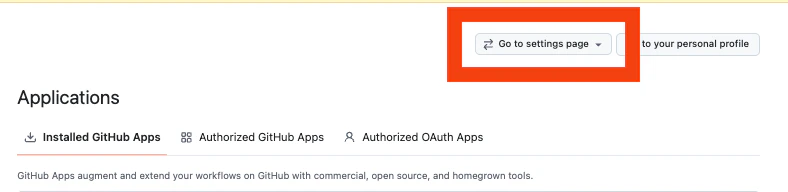
If needed, switch to the correct GitHub organization context using the Go to settings page dropdown in the top right.
On the installation page, scroll to the Danger zone section and click Uninstall to remove the Opulent Integration from the GitHub organization.
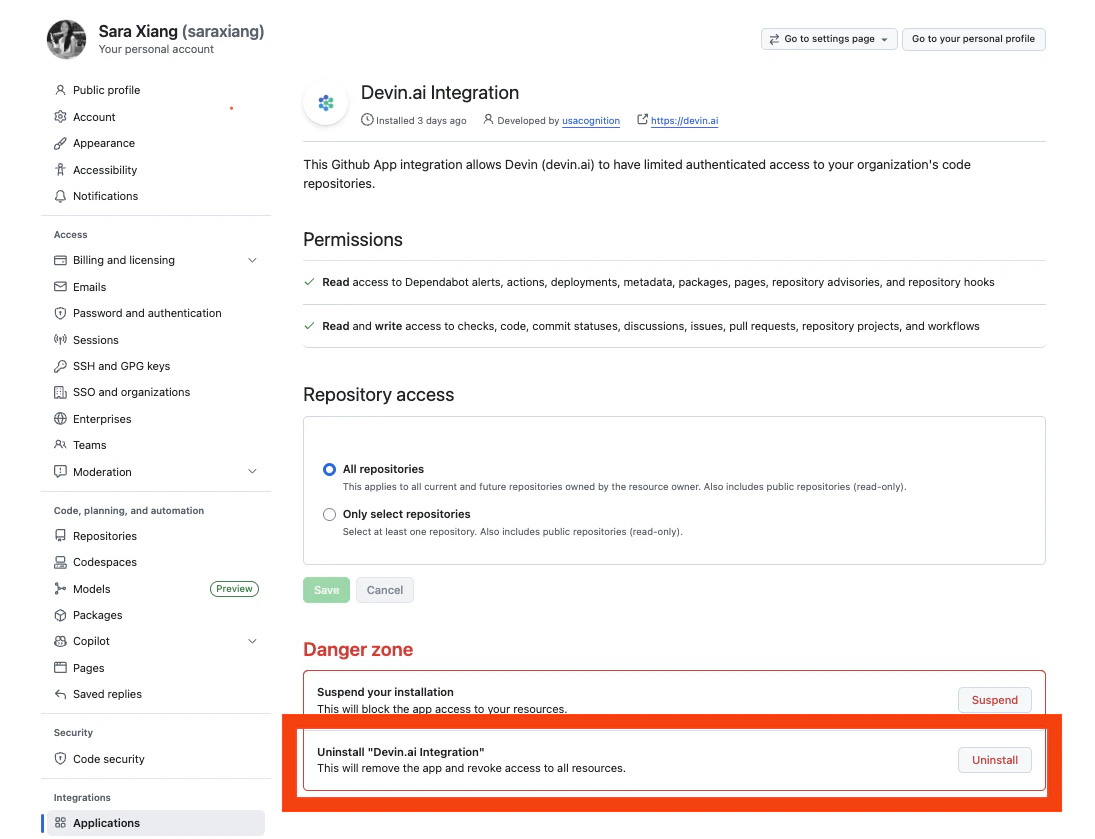
- Return to platform.opulentia.ai and refresh the page. You can now reinstall the GitHub integration under your Opulent organization.
GitHub Integration FAQs
Can I connect a personal GitHub account to my organization
Yes, you can connect either a GitHub Organization or a personal GitHub account to your Opulent organization. However, we recommend connecting the account that has the appropriate permissions for Opulent to access the repositories your team needs.
How does the GitHub app handle user authentication?
Only users who are members of the organization that installed the GitHub integration can use it in their Opulent sessions. Opulent inherits access to the GitHub integration based on the user's organization membership.
How does Opulent manage and rotate encryption keys?
Encryption keys are managed by AWS KMS and rotated periodically.