Secrets & Site Cookies
Securely share credentials with Opulent so it can access any tool
This page is Documented but Needs verification against the current Opulent build. Secret storage, per-session credentials, and environment-variable injection are in place; the exact page routes, the Site Cookie importer, secret redaction in logs, and the connector-scoping controls described below may differ from what ships. Confirm the live flow under Settings before relying on specific steps.
Giving Opulent Credentials
Opulent can use its own login credentials to access platforms that require authentication, either in its Browser or via the command line. We recommend setting up a dedicated account for Opulent to use (e.g. opulent@company.com) on each service that it needs access to. You may then save Opulent's username and password as Secrets on your account, so that it can log in as part of your future sessions.
Adding secrets is primarily done via the Secrets page. This page is particularly relevant for organization-level secrets. For repo-specific or session-specific secrets, see the sections below.
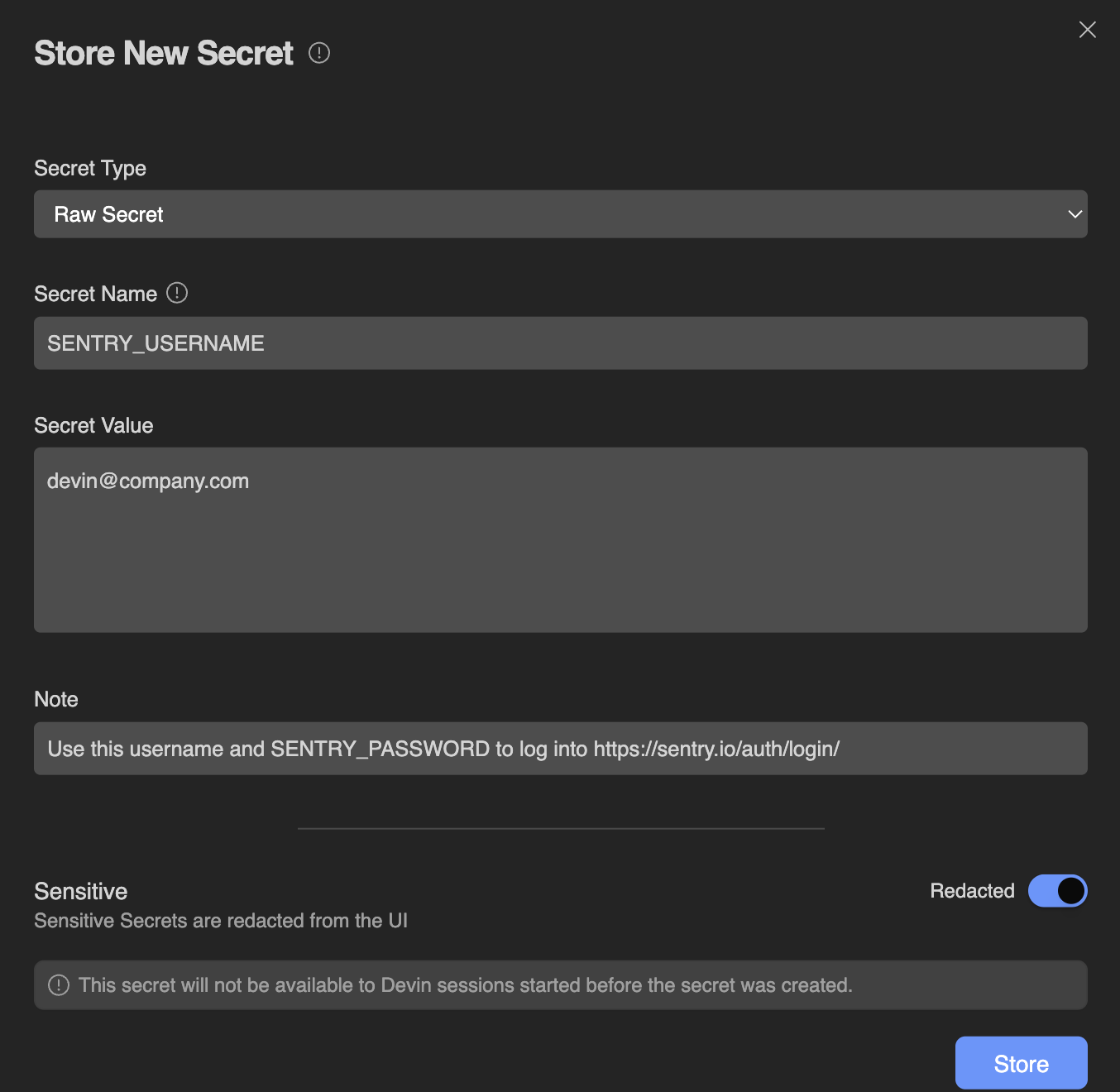
When adding a secret, you may add a Note that explains additional context or instructions for using the secret. Use this field to convey useful information to both Opulent and your fellow organization members. Example notes could include:
- This API key should only be used in our production env but never in staging or dev.
- Used for our AWS RDS Database in us-west-2
- These credentials are scheduled to be deprecated after Q3 2025
- Auto-expires every 30 days - ping the SecOps team for rotation if this starts failing
- This API key is attached to the opulent@company.com user account
Persisted Global Secrets
Secrets added under Settings & Library > Secrets are persisted to future sessions and apply to the entire organization. Note that any secrets you share here will be usable by Opulent in all future sessions within your organization. All secrets are encrypted at rest. New secrets are only available to Opulent in sessions created after you added the secret.
Please note that all members of your organization will be able to use Global Secrets, but only admins will be able to view or edit existing secrets. Take care to only add secrets that are specifically scoped to your organization and usable by all its members.
Personal Secrets
In addition to organization-wide secrets, you can create personal secrets that are scoped to your own sessions only. Personal secrets are not shared with other members of your organization. This is useful for credentials tied to your personal accounts or for testing secrets that should not be exposed to the broader team.
To create a personal secret, select the Personal scope when adding a new secret on the Secrets page. Personal secrets are only accessible in sessions you create and are not visible to other organization members or admins.
There are a few types of secrets available:
Raw Secret
This is most suitable for most generic secrets with a single value. Each Secret Name (also known as a Secret Key) is associated with a single Secret Value. Examples of secrets stored here could be:
- API Keys
- SSH Keys
- Usernames or Passwords
- Tokens
If a single secret requires multiple values, please make a distinct secret for each value. For example, you could store GITHUB_USERNAME and GITHUB_PASSWORD as two Raw Secrets.
Site Cookies
Cookies “hold” your authenticated state; if you are logged into some site, then giving Opulent your cookies for that site will make it so that Opulent is automatically logged in for the same site.
Please note that sometimes cookies can be insufficient by themselves and may require additional Username or Password secrets. For example, on Amazon, Opulent may be logged into the site while shopping or adding to cart, but Amazon might require an additional layer of password confirmation when it comes time to check out.
Cookies are stored as a base64 encoded string of ; delimited JSON array in the standard chromium cookie format. This is important to know if you need to manually encode cookies rather than exporting them directly from Chrome. For details of how to add a Cookie secret, please see Adding a New Site Cookie
Time-Based One-Time Password (TOTP)
Time-based one-time passwords are used for two-factor authentication (2FA). Opulent can store TOTP secrets that act similarly to those in Google Authenticator or Authy. For details of how to add a TOTP secret, please see Adding a New TOTP
Key-Value Secrets (Deprecated)
Opulent used to support creating Key-Value secrets that would handle multiple keys per secret. However, this feature is no longer available.
Instead of making key-value secrets, we recommend simply creating multiple raw secrets for each distinct field. For example, instead of creating a key-value secret for JIRA_LOGIN, you could create two raw secrets: JIRA_USERNAME and JIRA_PASSWORD.
Repo-Specific Secrets
To scope secrets to a specific repository, you can add them as environment variables (or in a .env file) during environment configuration.
Sessions using the same Snapshot in the future will be able to access those environment variables, but other unrelated sessions will not.
Session-Specific Secrets
While Opulent is working, it may ask you to provide credentials (API keys, logins, etc.) within the current conversation, like so:

When Opulent asks for secrets in this fashion, these secrets are scoped purely to the current session and are not saved for any future sessions.
Alternatively, you can set session-specific secrets yourself:
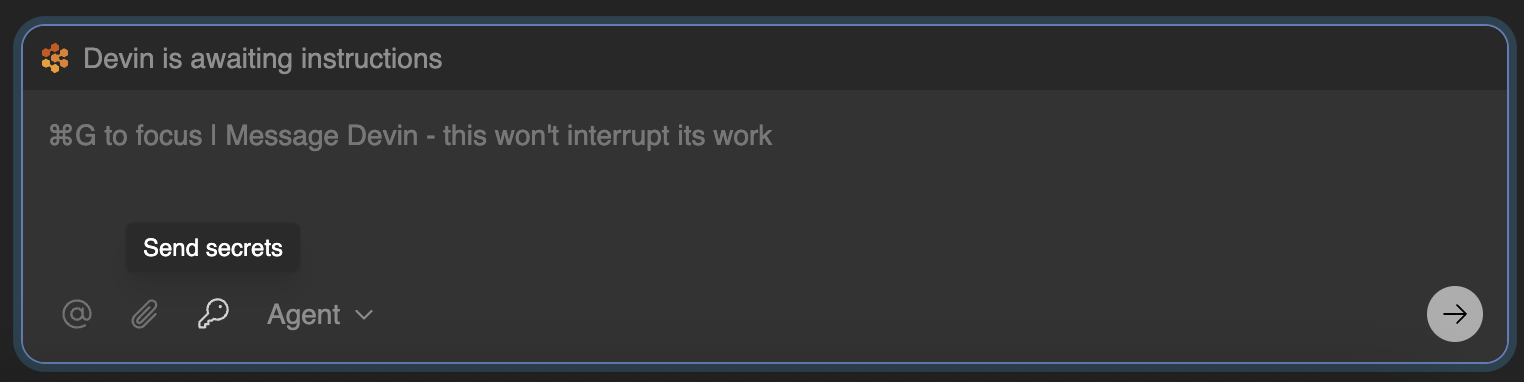
Working With Secrets
Once a secret has been configured in Opulent, your application may access it like a normal ENV variable (as long as the session was started after your secret was configured). This applies to global organization-wide secrets, repo-specific secrets, and session-specific secrets.
Opulent performs some text conversion to ensure that your Secrets are valid ENV variables:
- It removes invalid characters by replacing anything other than a letter, digit, or underscore with another underscore. For example, the secret named Abc%123 would become the ENV variable Abc_123
- If your secret name does not begin with a letter, Opulent adds an underscore to the beginning of the name. For example, the secret 123MYVAR would become the ENV variable _123MYVAR
- If you have two secrets with the same name, Opulent will add a counter to the end. For example, if you have two secrets named MY_SECRET you would end up with two ENV variables named MY_SECRET and MY_SECRET_2 and so on.
You may then access your secrets using your application's preferred method of reading ENV variables. For example, you may prepend a dollar sign to refer to a secret like $API_KEY.
Redaction and approved connector access
Opulent aims to keep secret values out of anything you share: when you share a session link or export an artifact, stored values are redacted from logs, terminal output, and transcripts. Opulent still reads the underlying value at runtime; only the surfaced text is masked.
Secrets are also how Opulent authenticates approved connectors — the native connectors and approved MCP servers in the Connector Marketplace. Scoping a secret to a specific connector keeps that credential limited to the integration that needs it. Redaction and connector-scoping are a Needs verification product target; confirm the shipped behavior in Settings before assuming a value is masked or scoped.
Adding a New Site Cookie
To add a Site Cookie, please follow the steps below:
Log in as you normally would to the account you'd like to share with Opulent. This will generate cookie(s).
In order to get the cookie(s) from the browser store, download the browser extension Share your cookies and follow the steps on that Extension to extract your cookies. You may want to test that importing the cookie in another Chrome Profile successfully authenticates you to the site.
Add the exported cookie to Opulent via the Secrets page.
When using the cookie for a site, Opulent should find that it’s already logged in when it navigates to that site. Tell Opulent to give it a try!
If you're not using Chrome or need to manually encode cookies, note that Opulent expects cookies in a base64 encoded string of ; delimited JSON objects in the standard chromium cookie format.
One-Time Password
Opulent can handle two-factor authentication (2FA) using a time-based one-time password (TOTP). To do this, you’ll need to give Opulent the information provided at the time 2FA is set up on Opulent's account for the specific application:
- Access Opulent's account for the service that requires 2FA.
- Go to the account security settings and look for an option to regenerate or view the QR code. This may be called Set up or Replace Authenticator.
- If the application allows, select the option to view the QR code.
- Once the QR code is displayed on your screen, take a screenshot.
- Go to Opulent's Secrets, click on the "Add Secret" button, and change the Secret type to "One-time Password". Put a descriptive name. Click the small QR code icon in the top right of the Value input box and upload your QR code screenshot.
Only provide 2FA codes associated with accounts that were specifically set up for Opulent's use only. We do not recommend giving Opulent any 2FA codes to your personal accounts.
Tips for TOTPs
- Some applications may not allow you to view the existing QR code once 2FA is enabled. In such cases, regenerating the QR code is the only option.
- Always save any new backup codes provided during the process in a secure location.