Importing workspace settings
Use your local settings, extensions, and conventions while working in Opulent's Workbench IDE
Working in the Workbench IDE is easier with your familiar Settings, Extensions, and Keyboard Shortcuts, plus the repo instructions and conventions your team relies on. This page describes how to bring those preferences into a session.
Status: Gap. A one-click import that syncs your local editor profile, repo instructions, and workspace conventions into every session is not shipped yet. The steps below describe the target flow. Today, the reliable way to carry conventions into a session is to commit them to your repo (for example AGENTS.md) so every session picks them up. Treat the auto-import and settings-sync sections as planned.
Auto-Import Settings
This workflow imports your settings automatically.
- Open any Opulent session that you started
- You should be greeted by the Welcome page. (If this page does not appear, you can always reopen it with
Cmd+Shift+Pon Mac orCtrl+Shift+Pon Windows/Linux and search for "Help: Welcome".)
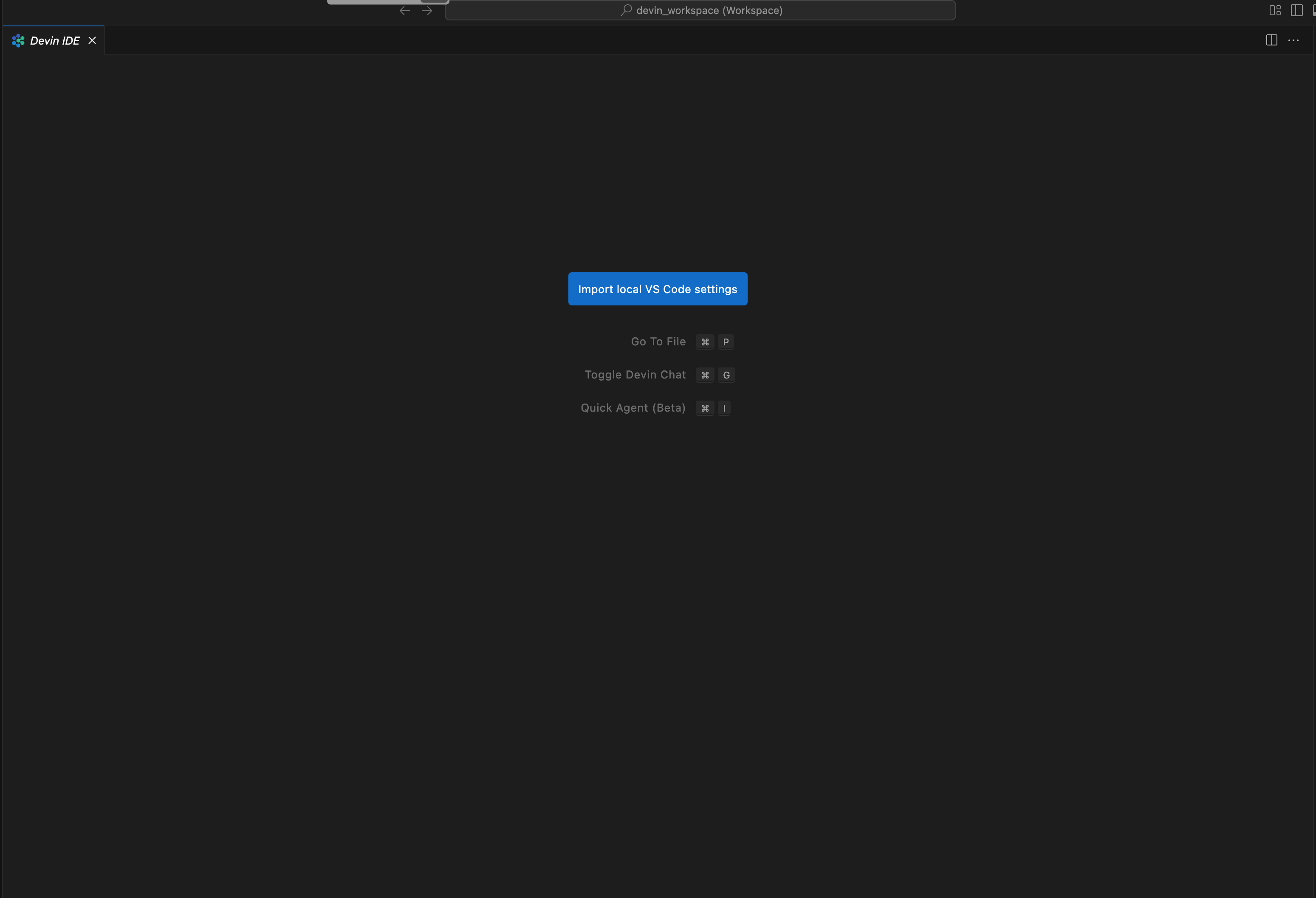
- Click the button to start the import flow.
- Follow the steps on the screen. You will copy paste a Python script to your local computer's terminal to upload your profile. (PowerShell for Windows)
- The script will prompt you to confirm your settings by visiting the platform.opulentia.ai URL.
- Once confirmed, your settings will be synced automatically to your session and to future sessions.
Exporting Your Local Profile Manually
If the auto-import workflow isn't available, follow these steps for manual export and import.
Watch this video to see how to export your profile in VS Code (including VS Code forks):
- Go to VS Code,
Cmd+Shift+P(Mac) orCtrl+Shift+P(Windows/Linux) -> Preferences: Open Profiles (UI) - Right click your profile (usually Default).
- Click Export and choose File in the quick pick that appears.
- Save the file to disk. This will get saved to a
.code-profilefile.
Importing Your .code-profile File Manually
Once you have a .code-profile file, you can upload it to any Workbench IDE session that you started.
- Open any Opulent session that you started
- Open the command palette with
Cmd+Shift+P(Mac) orCtrl+Shift+P(Windows/Linux) and search for "Preferences: Opulent: Import Profile (Manual)". - Select the file you uploaded. This will upload your profile to the machine. All your extensions and settings should then be auto-installed.
Verifying that your upload worked
Check that your Settings, Extensions, and Keyboard Shortcuts uploaded properly by doing the following in the Workbench IDE:
- Settings: open the command palette (
Cmd+Shift+Pon Mac /Ctrl+Shift+Pon Windows/Linux) and search for "Preferences: Open User Settings (JSON)". Check that it matches your local editor's. - Keyboard Shortcuts: open the command palette and search for "Preferences: Open Keyboard Shortcuts (JSON)". Check that it matches your local editor's.
- Extensions: Click the extensions icon in the sidebar (or press
Cmd+Shift+Xon Mac /Ctrl+Shift+Xon Windows/Linux). Search for the extensions you have installed locally.
Settings Sync
Once shipped, your settings will automatically sync across your sessions. Until then, re-import per session or keep conventions in your repo. Contact support if you encounter any issues.