Knowledge
Share important context and rules so Opulent stays onboarded across every session
What is Knowledge?
Just like onboarding a new knowledge worker, onboarding Opulent takes an initial investment in knowledge transfer.
Knowledge is a collection of stable facts, rules, client context, source locations, and recurring advice that Opulent can reference in all sessions. You add to Opulent's bank of Knowledge over time, and Opulent automatically recalls relevant Knowledge as it works. At runtime, notes are written with knowledge_manage (or memory_store) and retrieved with memory_search.
Knowledge is not Memory. Knowledge holds durable, trigger-able facts and rules at /dashboard/knowledge. Memory (/dashboard/memory) holds your preferences, project decisions, and collaboration state via memory_manage. Keep the two distinct — put a schema fact or deployment rule in Knowledge, and put "how this user likes reports formatted" in Memory.
Use Knowledge to share documentation, tips, custom internal libraries, system-of-record boundaries, and other materials Opulent may need.
How do I create Knowledge?
Open the Knowledge page at /dashboard/knowledge and click "Create knowledge" in the top right.
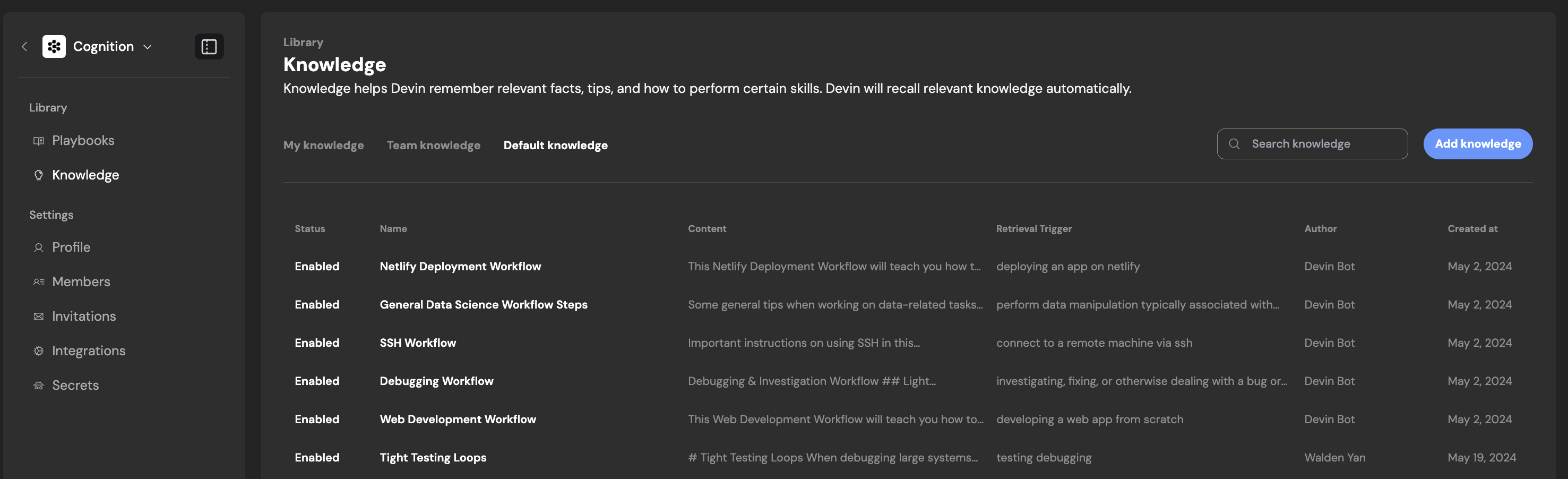
Your Trigger Description (the note's trigger) helps Opulent recall relevant Knowledge at the right moment. This can be a simple phrase or sentence. Opulent retrieves a Knowledge item when its current work relates to the specified trigger, so the more specific the trigger, the better the retrieval.
Content should be a handful of sentences with the relevant facts or rules.
Macros
You can assign a macro to any knowledge item — a short identifier starting with ! (e.g., !deploy-checklist). Macros let you reference a note directly in your prompts by typing the macro name. Macros can only contain letters, numbers, and hyphens, and must be unique within your organization.
Macro support is a convenience layer over knowledge_manage; confirm availability in your workspace (Needs verification).
Enabling and disabling Knowledge
Each knowledge item can be individually enabled or disabled per user. Disabling a note prevents Opulent from retrieving it in your sessions without deleting it from the organization. This is useful when a note is temporarily irrelevant to your work but may still help teammates or your future self.
Knowledge Suggestions
Opulent automatically suggests Knowledge to remember based on your feedback and what it learns during a session. Suggested notes are created with status: "suggested" and wait on the Knowledge page for review. Edit a suggestion before saving, or dismiss it if it isn't helpful — under the hood these map to the accept_suggestions and dismiss_suggestions actions.
You can also ask Opulent to regenerate a suggestion based on your feedback, which makes iterating easier than editing by hand. Opulent can suggest updates to existing notes as well as brand-new ones.
What belongs in Knowledge?
Capture the tribal knowledge a competent fresh agent could not infer from the source, README, or docs alone — the parts of your prompts or playbooks you find yourself repeating. Good examples: common bugs and their fixes, code conformance practices, deployment and testing workflows, schema facts that took real effort to discover, and how to interact with proprietary tools. Avoid storing anything readable directly from source, session-transient state, or secret values.
Organizing Knowledge with Folders
You can organize knowledge items into folders for easier management. Folders support:
- Nested hierarchy — Create sub-folders to build a structured knowledge tree.
- Bulk enable/disable — Toggle an entire folder on or off. When a folder is disabled, all knowledge items inside it are disabled for your sessions.
- Move items — Drag knowledge items between folders, or use the move action to reorganize.
- Auto-organize — Select multiple knowledge items and let Opulent sort them into logical folders.
Folders are especially helpful when your organization has many knowledge items spanning different teams, projects, or workflows.
Tips and tricks
- Create specific Knowledge targeted at one workflow or action. Opulent reads the entire note, so keep it all relevant and up-to-date.
- Split large notes into smaller ones where possible. Opulent can access multiple Knowledge items at once.
- Make a habit of adding and updating Knowledge. Notes are shared across your organization and continually improve Opulent for your team over time.
- Opulent retrieves Knowledge when relevant, not all at once or all at the beginning. Make each retrieval trigger highly relevant to the contents.
- Use folders to group related knowledge (by project, team, or workflow) so you can quickly enable or disable sets as your focus changes.
Organization and Enterprise Knowledge
For enterprise customers, the Knowledge page is split into separate tabs to manage knowledge at different scopes:
- Organization Knowledge — Notes scoped to your current organization. Visible to all members and the default scope for new items.
- Suggestions — AI-generated knowledge suggestions based on your session interactions (shown for non-primary organizations).
- Enterprise Knowledge — Notes that apply across all organizations in your enterprise. Only visible when you belong to an enterprise account. Enterprise admins create and manage enterprise-level knowledge from this tab.
Primary organization users see a single Enterprise Knowledge tab. Non-primary organization users with an enterprise account see all three tabs, with Organization Knowledge as the default. Non-primary organization users without an enterprise account see only Organization Knowledge and Suggestions.
Enterprise knowledge items are useful for company-wide coding standards, architectural guidelines, deployment procedures, and other context that should apply uniformly across all teams and organizations.
Promoting Organization Knowledge to Enterprise
If an organization-level knowledge item proves useful enough to share across your entire enterprise, you can promote it directly from the knowledge editor. Open the item, then click Promote to Enterprise in the Details tab. The item moves from organization scope to enterprise scope and becomes available to all organizations in your enterprise.
Promotion requires enterprise knowledge management permissions, and is only available for user-created knowledge items in organizations that belong to an enterprise.
Pinning Knowledge to Repos
You can choose whether Knowledge applies to no repo, a specific repo, or all repos:
- Pinning to no repo: The note is only retrieved when Opulent decides it's relevant to your current context (via its trigger).
- Pinning to a specific repo: The note is always used whenever Opulent is working in that specific repo.
- Pinning to all repos: The note automatically applies to every repo Opulent works on in any session.