GitLab
Work with Opulent directly in your GitLab repositories
Why integrate Opulent with GitLab?
Integrating Opulent with your GitLab repositories allows Opulent to create merge requests, read and respond to your MR comments, and collaborate effectively with your team. This lets an Autonomous Knowledge Worker act as a true collaborator on your engineering team, alongside its diligence, research, and operations lanes.
The GitLab integration is Partial today. Cloud connections, merge request creation, and comment handling work now. Real-time webhook events and self-managed instance support are available on the Enterprise plan, and merge request status sync on self-hosted installs runs on a daily schedule rather than in real time (see the note below).
Using a self-hosted GitLab instance? We support GitLab Self-Managed for users on our Enterprise plan. Click the dropdown on the "Connect" button and select "Self-Hosted". See the GitLab Self-Managed Integration guide for full setup instructions.
Setting up the Integration
The setup is easy. Here's how to get started:
Create a new GitLab account specifically for Opulent (just like you'd create a personal account). You'll use this account, not your personal one, during the integration process.
In your Opulent account, go to Settings > Connections > GitLab and click "Connect".
You'll be redirected to GitLab where you should:
- Log in with the GitLab account you created for Opulent (not your personal account)
- Grant the necessary permissions for Opulent to work with your repositories
Once completed, you'll return to the Opulent settings page where you can confirm the integration is active.
For GitLab on-premise (self-hosted) installations, the sync of MR status (open, merged, closed) to Opulent sessions only happens once a day. This can lead to a temporarily misrepresented MR status in your session or session list until the next sync occurs.
Webhook Configuration
Configuring a webhook allows Opulent to automatically receive real-time notifications when specific events occur in GitLab (such as opening or updating merge requests and commenting on merge requests).
To configure the webhook:
- In your Opulent account, go to Settings > Connections
- Locate the GitLab instance you want to configure
- Click the Manage dropdown
- Select Configure Webhook
- Follow the provided commands to complete the setup
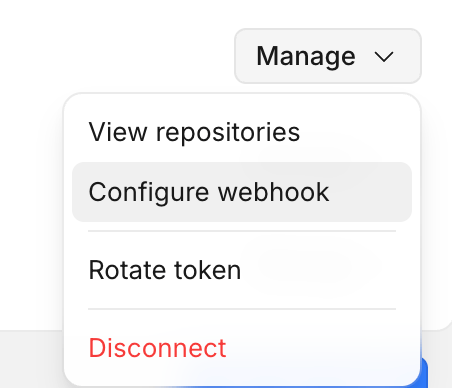
Once configured, Opulent will be able to respond to GitLab events in real time rather than relying on periodic polling.
Repository Permissions
For Core and Teams users
Once the integration is configured, you can @mention repositories directly in your prompts within the Opulent web application.
For Enterprise users
Once the integration is configured, you can delegate repositories to specific organizations from Enterprise Settings > Repository Permissions.
- Go to Enterprise Repositories
- Select the correct organization
- Open Manage Permissions
- Add the relevant repositories with the appropriate read/write permissions
If repositories do not appear immediately after connecting, Opulent refreshes the repository list periodically. You can manually refresh the repository list in Opulent.
User Linking
For Enterprise users with a self-hosted GitLab instance, individual users can link their personal GitLab accounts to Opulent. This allows Opulent to act on behalf of individual users for GitLab operations.
To link a personal GitLab account:
- Ensure you are a member of an Opulent organization with GitLab repository permissions
- Go to Personal Connections in your Opulent settings
- Look for the GitLab integration
- Select the GitLab connection and complete the linking flow
Personal Connections only shows integrations for organizations the user belongs to. If the GitLab integration does not appear, confirm that you are a member of an Opulent organization with GitLab repository permissions.
Using Opulent with the GitLab Integration
After connecting GitLab, set up your repositories on Opulent's Machine.
While Opulent can see and address comments you leave on its merge and pull requests if you ask directly, Opulent will not wake up automatically to respond to these comments.
Best Practices
- Create a dedicated GitLab account for Opulent
- Enable branch protections on main/master branches
- Configure the webhook for real-time event notifications
Support
- Create a Slack connect channel with our team at platform.opulentia.ai/settings/support
- Share session links when reporting issues and provide screenshots